

Course Overview
I. Important Notes Before Using the Backup Feature:
To avoid errors during usage, please carefully read the following notes:
1. The “Local Profile Backup” feature is only available for Lifetime Pro plans.
2. Use version 4.0.28 or later only:
The “Local Profile Backup” feature is only stable and fully supported from version 4.0.28 onwards.
If you downgrade to an earlier version after using 4.0.28, errors may occur.
3. Using multiple devices (e.g., Device A and Device B) with the same account:
Assume you are using two devices (Device A and Device B), and each already has some existing profiles.
When you set up backup on device A, the profiles associated with that account on device A will be backed up to the storage system (e.g., Drive, server). Then, if you sign in with the same account on device B, the system will download the backed-up profiles from device A and overwrite any existing profiles with the same account on device B.
👉 If Device B is using a different account, those profiles will not be affected.
👉 Therefore, if Device B contains important profiles under the same account as Device A, be cautious to avoid data loss due to overwriting.
4. Always sign out or close the app before switching devices:
Before switching to another device, make sure to sign out or close the application so data can sync properly to Google Drive.
If not, data may be lost.
Ensure you’ve signed out from all other devices before logging in again.
5. Do not disable the Backup feature after enabling it:
Once the backup feature is turned on, keep it enabled.
If you disable it:
- New profiles created afterward will not be saved to Drive.
- These profiles will also not appear when logging in from another device.
- Any changes made to profiles while backup is off will not sync, resulting in potential data loss.
6. Do not rename or delete the Backup folder on Google Drive:
Renaming or deleting the backup folder may cause sync issues or data loss.
7. Drive storage full:
If your Google Drive runs out of storage, data will not be backed up.
Once you have more available storage, reopen the application and re-enable the profiles that were not synced to back them up again.
Make sure to check your Drive storage regularly.
8. Changing the Storage Location:
If you’re currently using Google Drive as your storage location, it is not recommended to switch to an SFTP server, as this may lead to data loss. If you really need to change the storage location, then after switching to the SFTP server, you must manually reopen all previously stored profiles on Drive. This is because the profile data cannot be automatically transferred from Drive to the server.
II. How to Connect Your Account to Google Drive
Step 1:On the Backup Local screen, turn on “Backup profiles local”, then click the “Connect Google Drive” button.

Step 2:Select your Google account.

Step 3:Then click Advanced → and select Go to Hidemium.


Step 4:Then click Continue.

Step 5:You need to select the permissions that Hidemium can access. After making your selection, click Continue.

Step 6: When the interface appears like this, it means you have successfully connected.

Step 7: Then, return to the app. A popup will appear. Make sure to read the content in the popup carefully. After that, check the box for “I agree to the above terms” and click Backup Now.

Another important note you need to know:
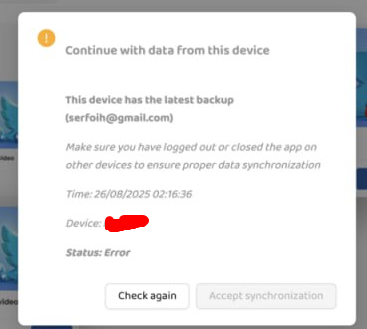
When you log in on a new device, a popup notification will appear. This popup will display the time and the last device that backed up your profile to Drive.
Make sure to carefully check this information:
-
If you notice that the backup time is incorrect or the device shown is not the most recent one you used, do not click “Accept synchronization” right away.
-
Instead, click “Check again”, then go back to your previous device and log out properly to ensure that the profile is fully backed up to Drive before synchronizing to the new device.

Note: If you see this popup when logging in, you need to log in on the previous device first, then click “Backup now”, and log out again.
- When you see this popup, it means the backup process on your old device is experiencing an error. You need to access the old device to back up the data again.

III. Instructions for Using an SFTP Server to Back Up Data:
On the Local Backup screen, enable Backup profiles locally, then select SFTP server.
You need to enter all required information. The system will check whether the connection to the server is successful. After that, save the information.

Another important note you should be aware of: When you log in on a new device, a popup notification will appear. This popup shows the time and the last device that backed up your profile.
Please check this information carefully:
If you see that the backup time is incorrect or it’s not the most recent device you used, do not click “Accept synchronization” right away.
Instead, click “Check again”, then go back to the previous device and log out properly to ensure the profile is fully backed up to the drive before syncing it to the new device.
Note: If you see this popup when logging in, and log out again.
