Course Overview
Lưu ý:
- Chỉ hỗ trợ trên hệ điều hành Windows.
- Cho phép lựa chọn ngôn ngữ sau khi cài đặt ứng dụng.
- Hỗ trợ di chuyển đường dẫn lưu dữ liệu cũ của ứng dụng Hidemium sang vị trí mới.
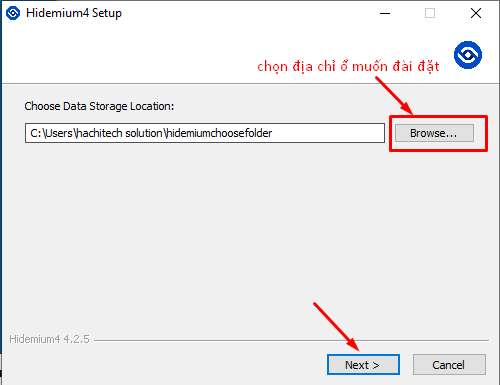
- Nếu đã cài app trước đó và muốn chuyển ổ lưu data sang ổ khác thì phải tiến hành thêm từ bước này: Đường dẫn lưu data cũ (C:\Users\hachitech solution\.hidemium_4), chuyển toàn bộ data trong folder này sang folder mới (Ví dụ: D:\hidemium_4) trước khi cài app và chọn folder này ở bước 5 là folder ở ổ mới thì phải tiến hành chuyển toàn bộ data sang folder mới.
- Tên folder khi đặt không được sử dụng tiếng việt có dấu và khoảng trắng
Note:
- Only supported on the Windows operating system.
- Allows selecting the application language after installation.
- Supports relocating the old Hidemium data storage directory to a new location.
- If the app was previously installed and you want to move the data storage to another drive, perform the following before installation: Move all data from the old data directory: (C:\Users\hachitech solution\.hidemium_4) to a new folder (e.g:D:\hidemium_4) before installing the app, and select this new folder in Step 5.
- Folder names must not contain Vietnamese accents or whitespace.
Đối với những user đã từng cài app, nếu có ý muốn chuyển ổ lưu dữ liệu thì trước khi cài cần làm theo bước này:
For users who have previously installed the app, if they want to change the data storage drive, they need to follow this step before installing:
Chuyển tất cả các dữ liệu trong folder này : C:\Users\(ten_may}\.hidemium_4 sang folder mới mà bạn định chuyển qua.
Move all data in this folder: C:\Users\(computer_name)\.hidemium_4 to the new folder that you plan to switch to.

Sau khi chuyển xong thì tiến hành cài đặt app theo các bước bên dưới.
After completing the transfer, proceed to install the app following the steps below.
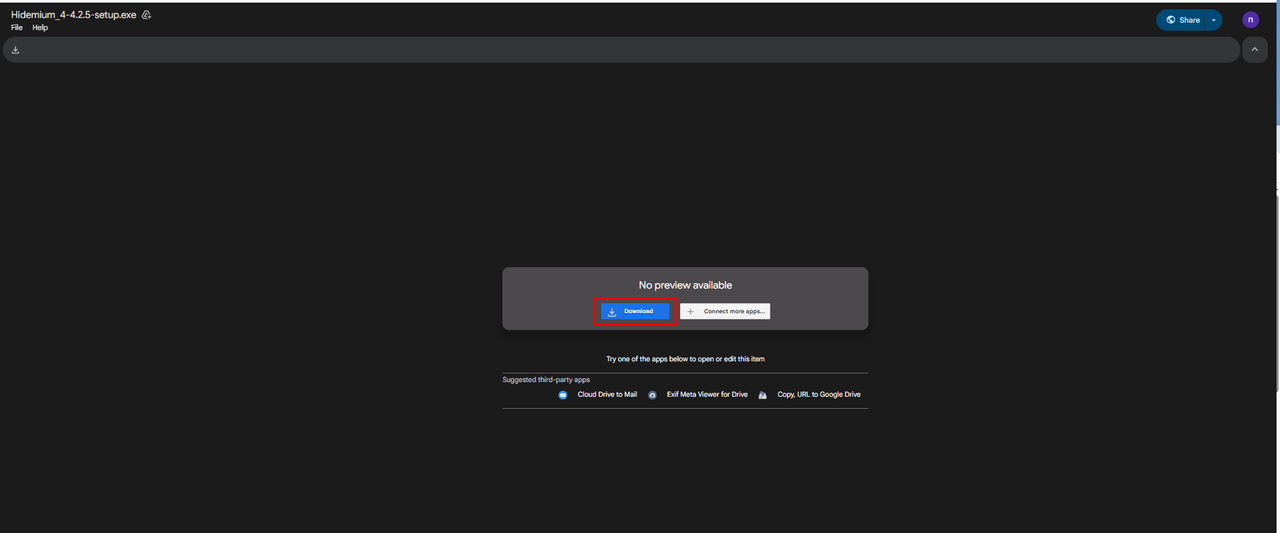
Bước 1: Tải bản cài về máy
Step 1: Download the installer to your computer.
Bước 2: Tiến hành cài đặt mở file cài
Step 2: Run the installer file to begin installation.

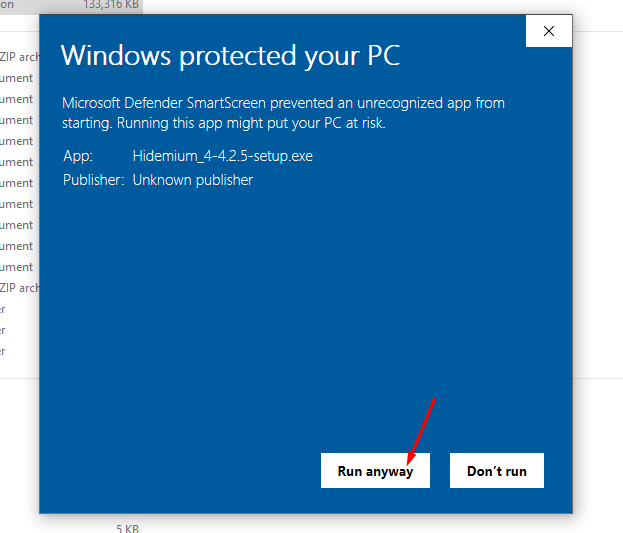
Bước 3: Chọn “Run anyway”
Step 3: Select “Run anyway”.
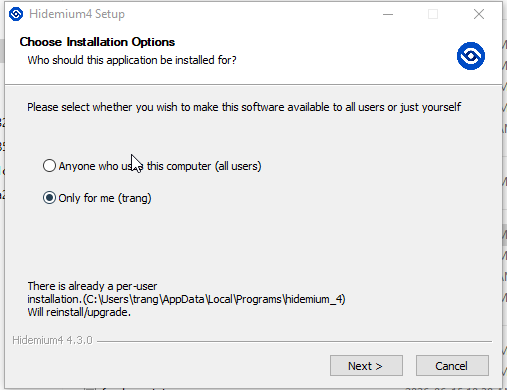
- tại giao diện này, tiếp tục ấn Next
On this screen, continue by pressing Next.
Bước 4: tiếp theo, sẽ hiển thị giao diện chọn thư mục để chạy app Hidemium4 , bạn nên mặc định:
Step 4:Next, the interface for selecting the folder where the Hidemium4 app will run will be displayed. You should set the following as the default:
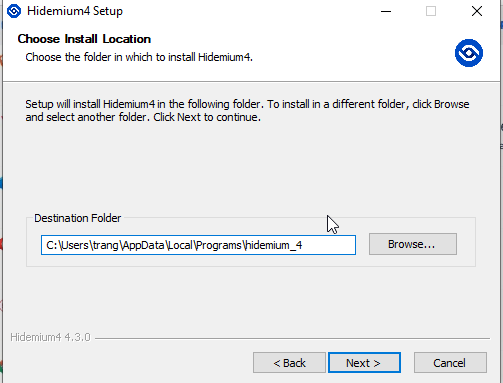
Bước 5: chọn thư mục lưu dữ liệu của Hidemium (bao gồm data profile ). Lưu ý, thư mục này phải khác với thư mục đã chọn ở bước 4, không được chọn chung 1 thư mục với thư mục đã chọn ở bước 4:
Step 5: Choose the folder to save Hidemium’s data (including the data profile). Note that this folder must be different from the folder selected in step 4; you cannot choose the same folder as the one selected in step 4.
Bước 6: Chọn ngôn ngữ app Hidemium khi mở app, tiếp theo chọn install để hoàn thành setup
Step 6: When launching Hidemium for the first time, select the application language, then click “Install” to complete the setup.
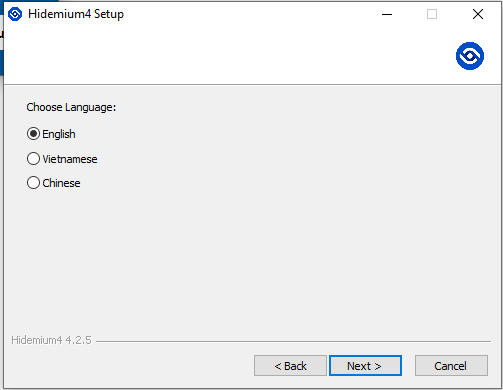
Sau đó ấn Install đến hết để hoàn thành việc cài đặt app Hidemium.
Then press Install until the end to complete the installation of the Hidemium app.
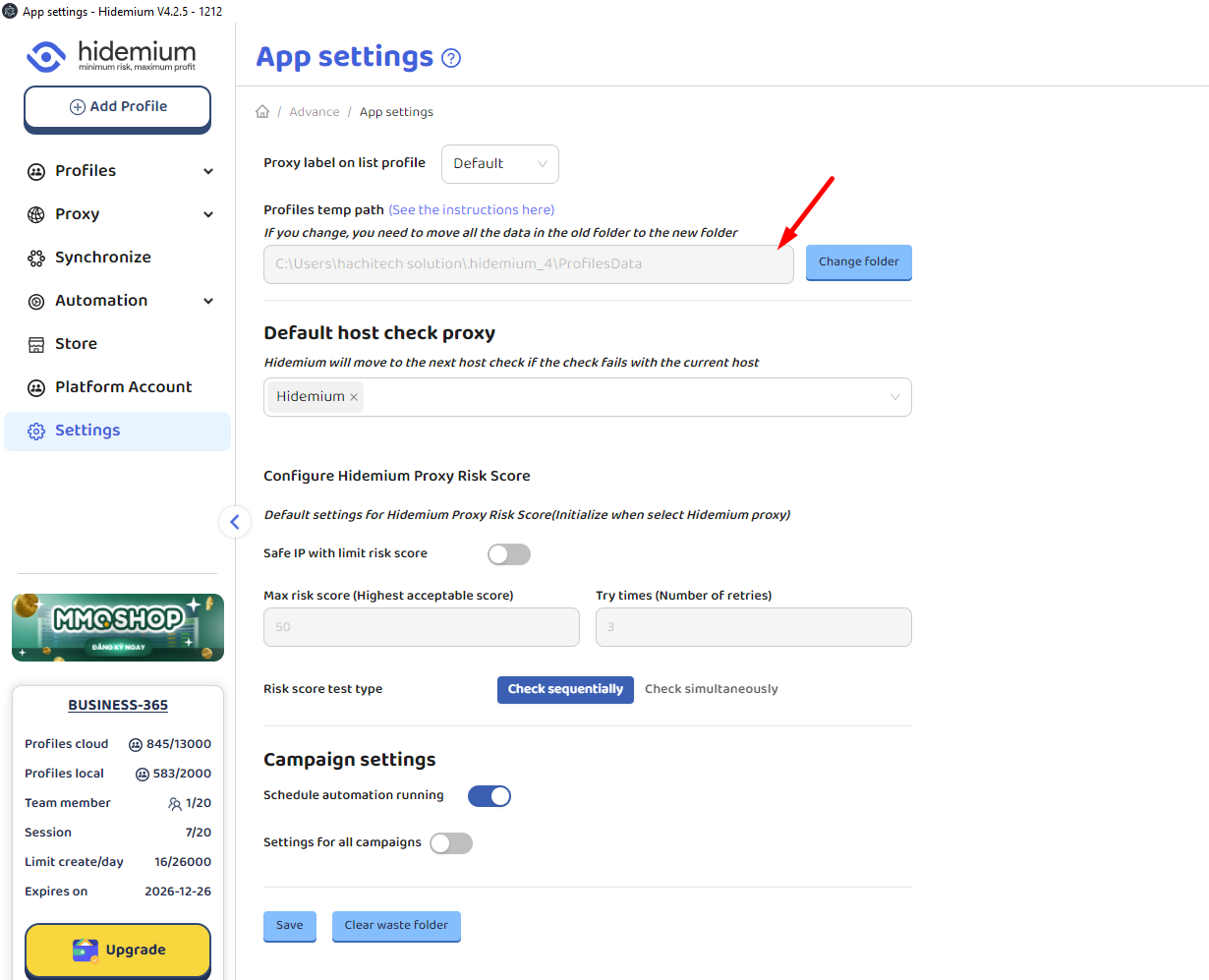
Bước 7: Sau khi cài đặt xong, bạn mở app và vào màn App settings, Kiếm tra lại đường dẫn trong app setting đúng là đường dẫn của folder ở ổ mới chưa (folder tại bước 5).
Step 7: After installation is complete, open the app and go to the App settings screen. Check that the path in the app settings matches the path of the folder on the new drive (the folder from step 5).