Lesson 2: Downloading and Installing Hidemium
To download the Hidemium application, visit the following link: https://hidemium.io/download

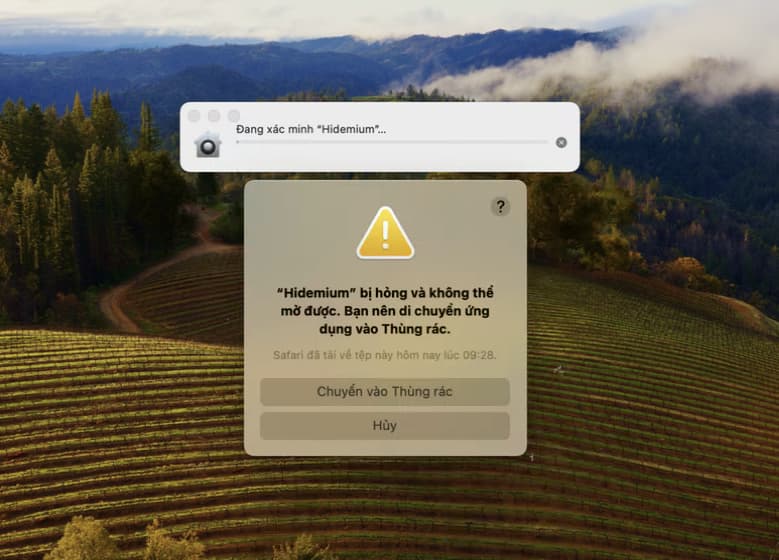
This is one of the most common errors encountered by new macOS users when installing applications.
Instructions to Disable Gatekeeper (Enable the “Anywhere” Option) to Fix the Error: “Damaged and can’t be opened. You should move it to the Trash”.
By default, if you download a file that is not from the App Store, the following message will appear when you try to open it: “File Name is damaged and can’t be opened. You should move it to the Trash” or “App can’t be opened because it is from an unidentified developer.”
To fix this error, follow these steps:
Copy and paste the following command into Terminal and press Enter.
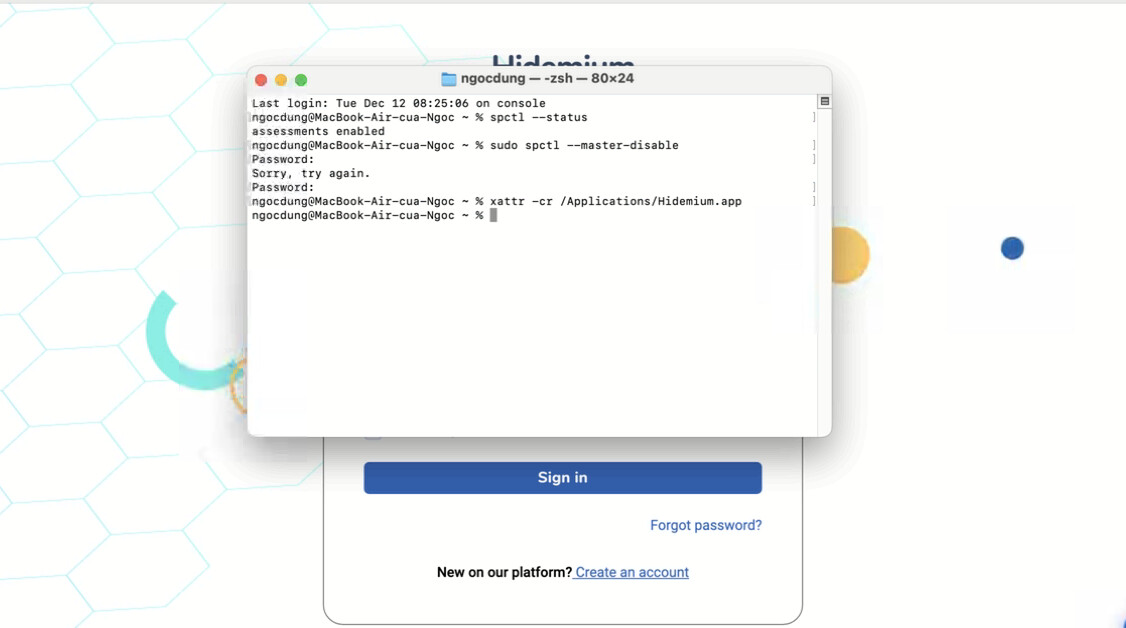
**sudo spctl –master-disable**
After that, enter your computer’s password and press Enter.
Note:
When entering your password, nothing will appear on the screen. Just type it correctly and press Enter. If no error message appears, the process was successful. Afterward, the application should run without any errors.
You can verify that the command was executed by entering the following command into Terminal.
**spctl –status**
On the other hand, if you want to re-enable Gatekeeper and prevent installing applications from external sources, enter the following command into Terminal:
**sudo spctl –master-enable**
Additionally, there is another method you can try, as outlined below:
Method 2: This method uses a pre-made CMD file for those who prefer not to work with Terminal.


If you’ve disabled Gatekeeper and the issue persists, try this final trick, which should definitely work: Here’s the command to remember:
**xattr -cr**
Open Terminal and enter the following command:
**xattr -cr [space]**
After that, drag the application into the
Terminal window and press Enter. For example, in the image below, I dragged the file “Adobe Zii 3029 4.4.4” to run it. If the screen looks like the one shown below, it’s working correctly.

After that, reopen the application to check if it works. Make sure to note that there must be a space after “cr.”
If you’re using Ventura and encounter the error “Operation not permitted”, grant permission to Terminal by following the instructions in the image below.