Lesson 13: Synchronize
In this article, we’ll explore Synchronize, the process of aligning two or more systems or objects to work harmoniously, optimizing efficiency.
Synchronize plays a crucial role in Profile management, enabling smooth and seamless operation across multiple Profiles.
How to Use Synchronize
Follow these steps to use the Synchronize feature:
- Select Profiles to Sync
Go to the Profiles section and select the Profiles you want to synchronize. Ensure they are running before starting the synchronization process. - Key Synchronize Operations
- Start sync: Synchronize the selected Profiles to make them work together.
- Stop sync: Stop synchronization, allowing you to manage each Profile independently.
- Restart: Turn synchronization off and on to refresh the system.
Status and Actions in Synchronize
Status and Actions in Synchronize
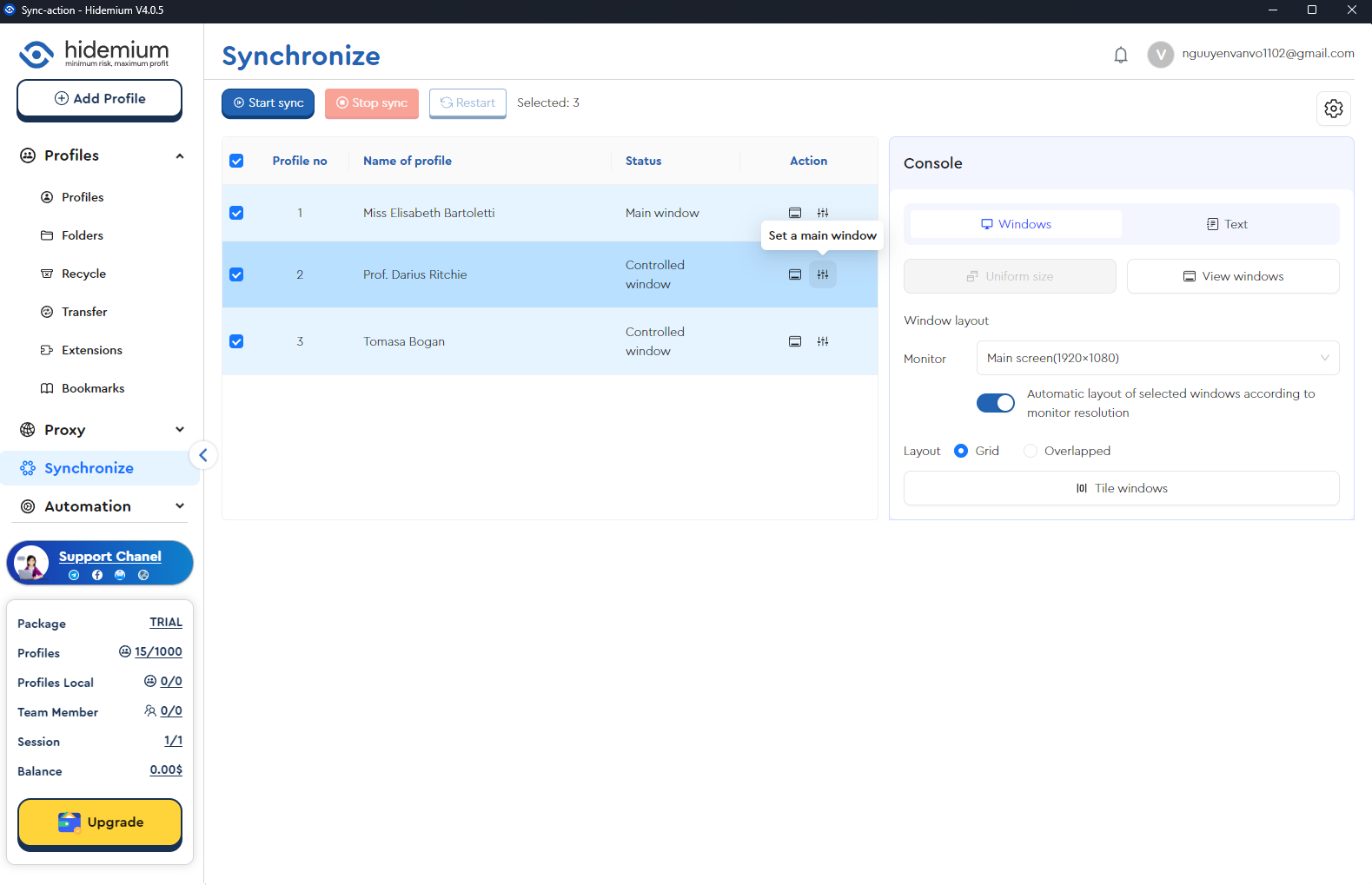
Synchronize consists of two key elements: Status and Action.
- Status:
- Main window: The primary interface where you control and manage Profiles.
- Controlled window: A secondary interface to monitor Profiles’ activities and movement.
- Action:
- Set a main window: Assign a primary control window.
- Display window: Customize how the Profiles’ interface is displayed.
Console Settings
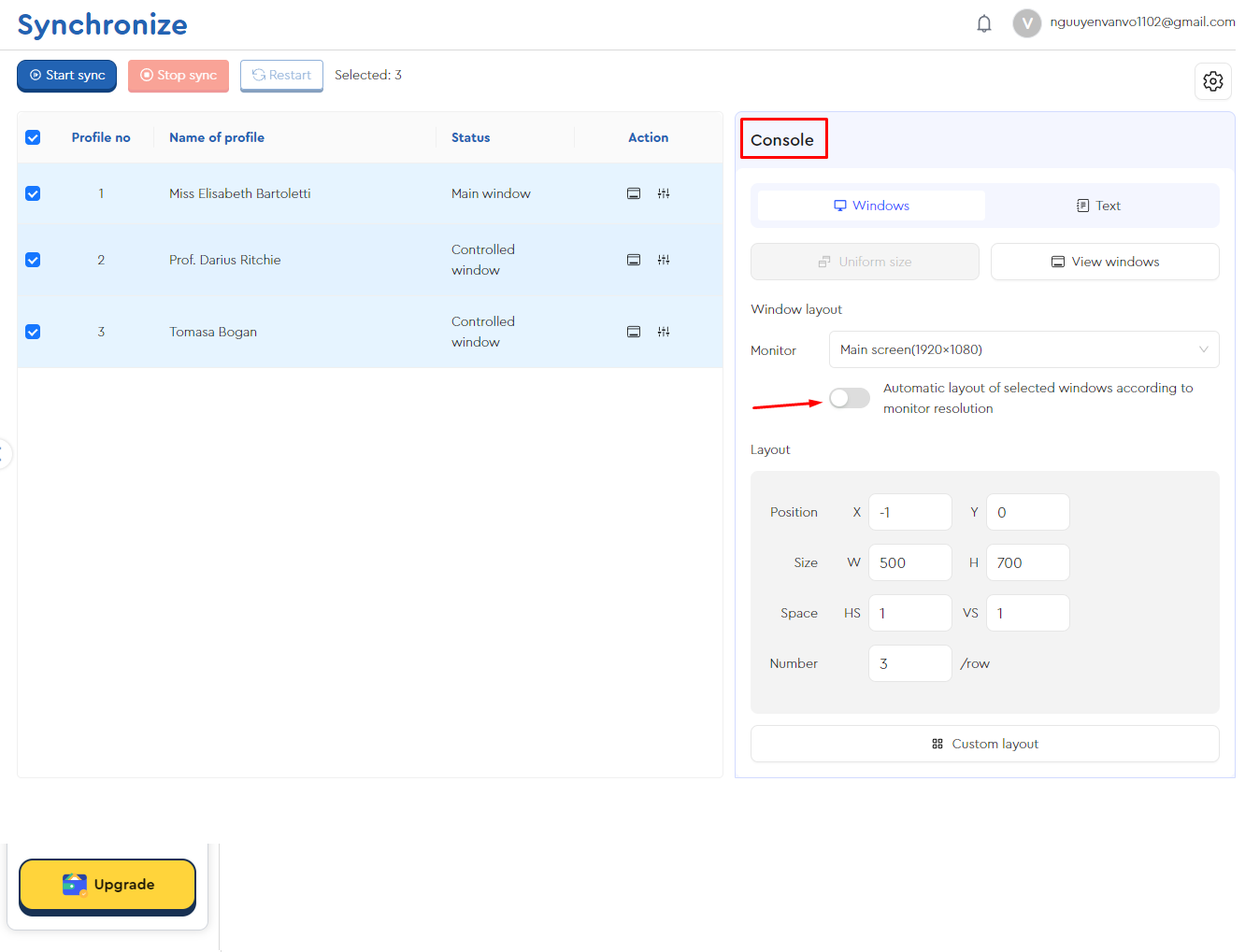
In the Console section, you can automatically adjust screen layouts based on your monitor’s resolution by selecting Automatic layout of selected windows according to monitor resolution. If enabled, Profiles will automatically adapt to the screen size. If not, you can manually arrange the layout to fit your workflow.
Adjust Typing and Clicking Speed
The Settings menu allows you to customize typing and clicking speeds, enhancing productivity when working with Profiles.

Conclusion
Synchronize is a powerful tool for synchronizing and managing Profiles with ease and efficiency. Make the most of its features, including synchronization, window management, and screen customization, to streamline your workflow.
Watch the detailed tutorial here: https://www.youtube.com/watch?v=LOQxG9e7bUM