Lesson 8: Adding Extensions to Profiles
In this article, we will explore how to easily and effectively add extensions to profiles in Hidemium. Using extensions enhances the functionality of your profiles, offering convenience in management and improving overall work efficiency.
- Adding Extensions to Profiles via the Extension Manager
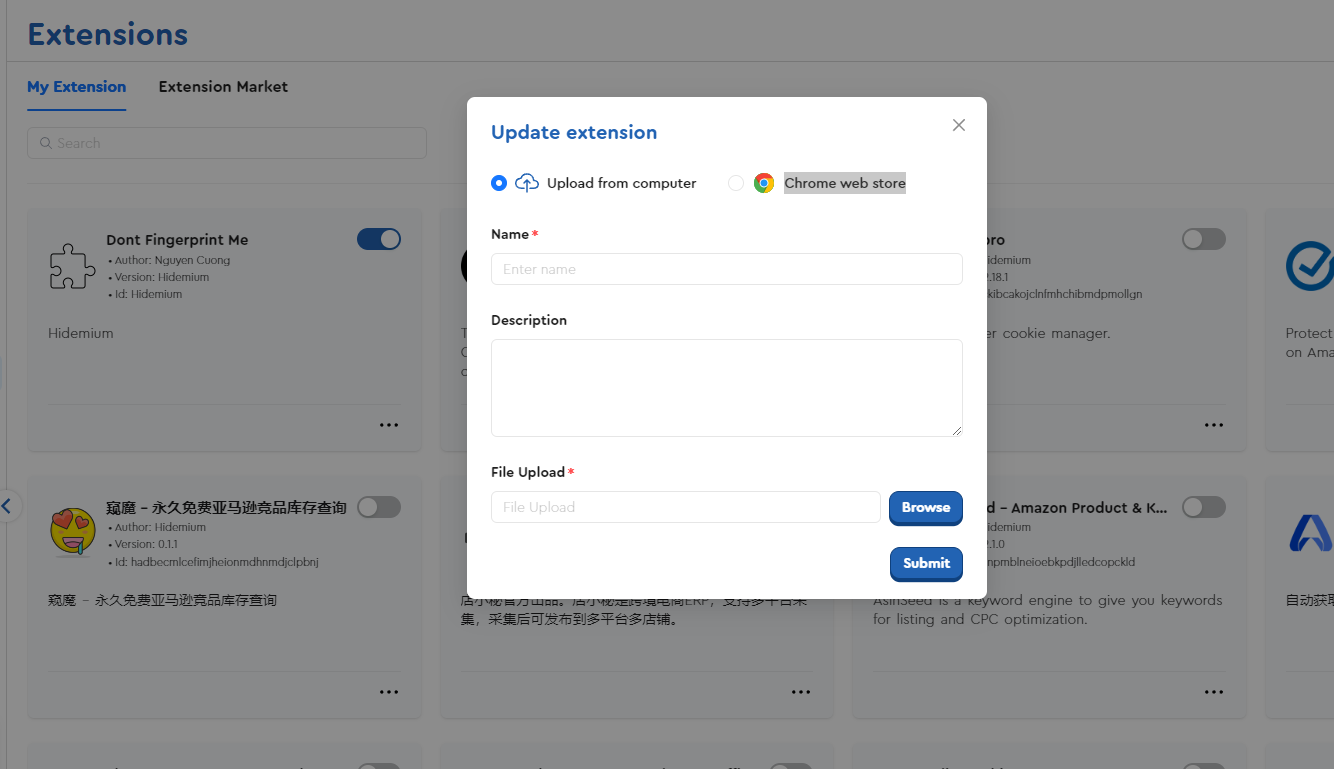
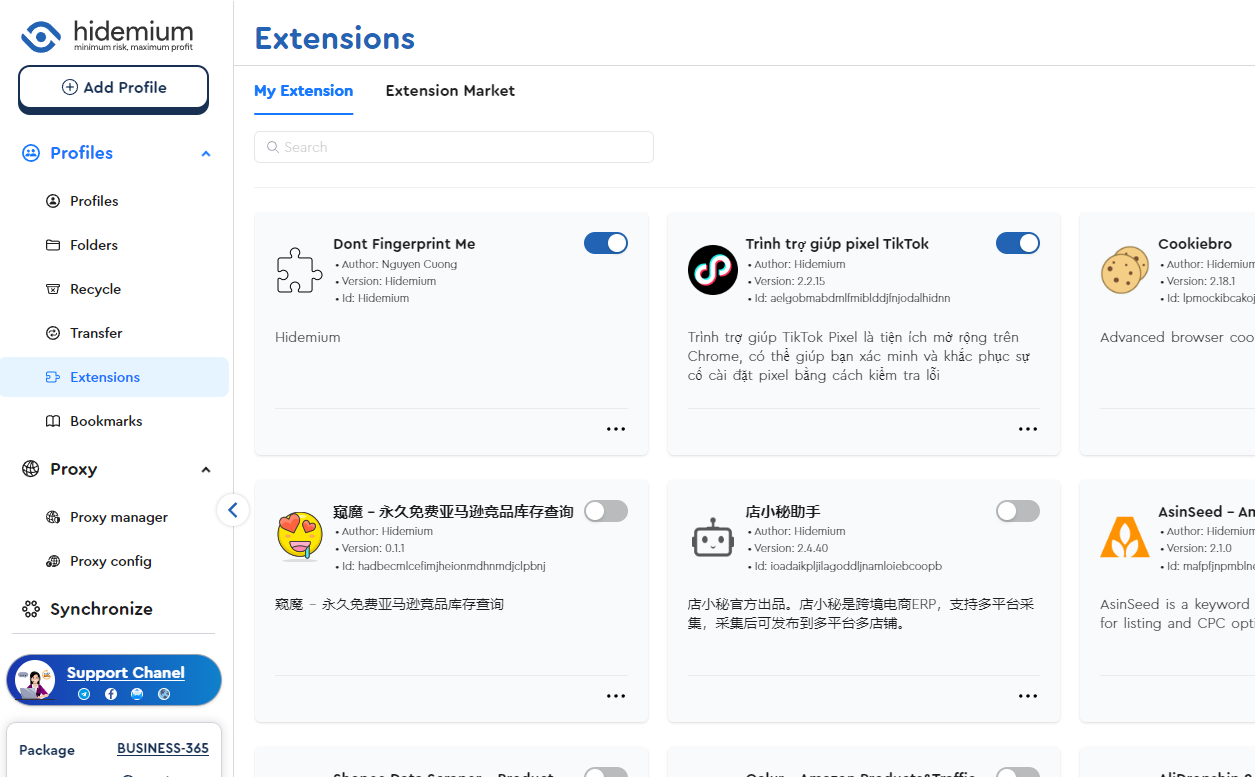
The Extension Manager is where you manage all the extensions for profiles in your Hidemium account. Key points to keep in mind:
- Enable/disable extensions: When you enable an extension in the Extension Manager, it will automatically activate for all profiles (both old and new). Likewise, disabling it will turn off the extension for all profiles.
- Customize extensions per profile: If you want to manage extensions individually for each profile, you can use the Edit Profile option or the Update Multiple feature to adjust multiple profiles at once.
In the Extension Manager, you can manage My Extensions—these are the extensions you’ve uploaded or obtained from the Market Extension.
How to upload an extension:
- Upload from your computer: Directly upload extensions from your device.
- Chrome Web Store: Add extensions from the Chrome Web Store.
When extensions in My Extensions are selected, they will automatically be assigned to profiles created in Expert Mode. These extensions will be automatically enabled under section 6: Extension when profiles are created.
2. Using the Update Multi Profiles Feature
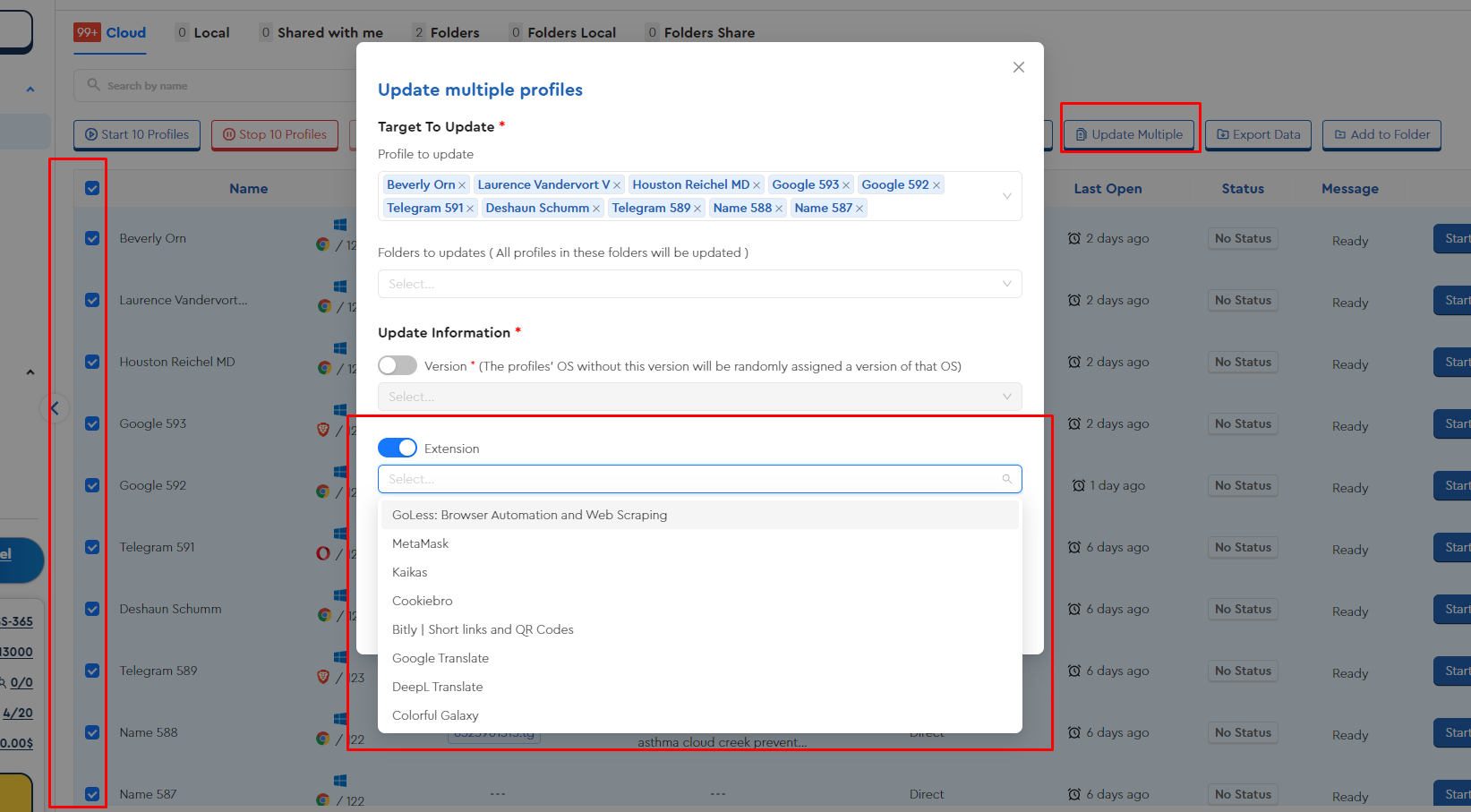
Another way to add extensions to profiles is by using the Update Multiple feature. Follow these steps:
- Select the profiles you want to add extensions to.
- Click the Update Multiple button, and the update panel will appear.
- Choose the desired extensions, and they will be added to all selected profiles.
- Adding Extensions via Default Config
You can also add extensions to profiles through Default Config:
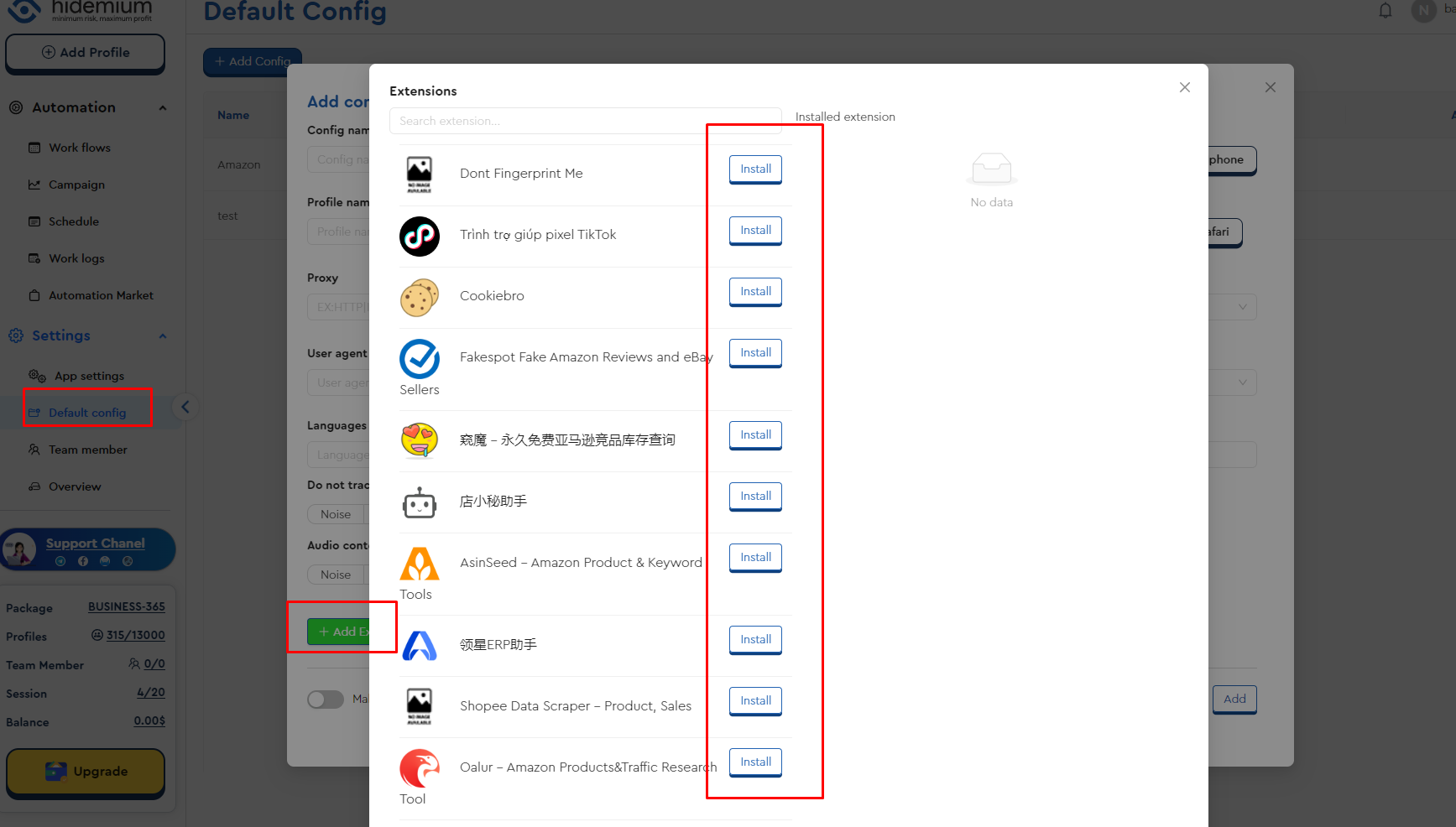
In the Default Config screen, click the Add Extension button, and the Install Extension panel will appear.
Select the desired extension and create profiles using the Default Config. These extensions will automatically be installed in your profiles.
Benefits of Using Extensions for Profiles
Adding extensions to profiles helps you:
- Expand functionality: Customize and optimize profiles according to your needs.
- Save time: Easily manage multiple profiles at once without having to manually install each extension.
- Centralized management: Enable or disable extensions for all profiles with a single action.
By using these three methods, you can quickly and efficiently add extensions to profiles. The use of extensions not only increases flexibility in managing profiles but also optimizes your workflow.